
Start with a business question, select the relevant pages and compare like-for-like Search Console periods. Use URL Inspection for indexing questions and Performance for search appearances. Neither report is a complete customer or sales record.
Search Console tells you how your website appears in Google Search. It does not tell you whether an inquiry became a good customer.
Use it to find the next useful question, then connect the answer to your website and business records. Opening every chart at once rarely improves the diagnosis.
Before you start
Confirm access to the correct property and identify its coverage. A Domain property and a URL-prefix property can include different versions of a site. Ask the owner for appropriate access rather than sharing credentials.
Write one question: “Why did visits to our reporting service fall?” is specific enough to investigate. Save the page URL, date range, device, country and search type with the review so the next comparison means the same thing.
Google’s getting-started guide explains the major reports. Use them for different jobs:
| Question | Starting point | What it cannot establish alone |
|---|---|---|
| Did search appearances change? | Performance | Whether the visitor bought |
| Is this URL indexed? | URL Inspection | Whether it will rank well |
| Are many pages excluded? | Page indexing | Whether every exclusion is a defect |
| Did Google read the sitemap? | Sitemaps | Whether every listed page was indexed |
| Is a manual action recorded? | Manual actions | The cause of every traffic decline |
Compare the same page over sensible periods
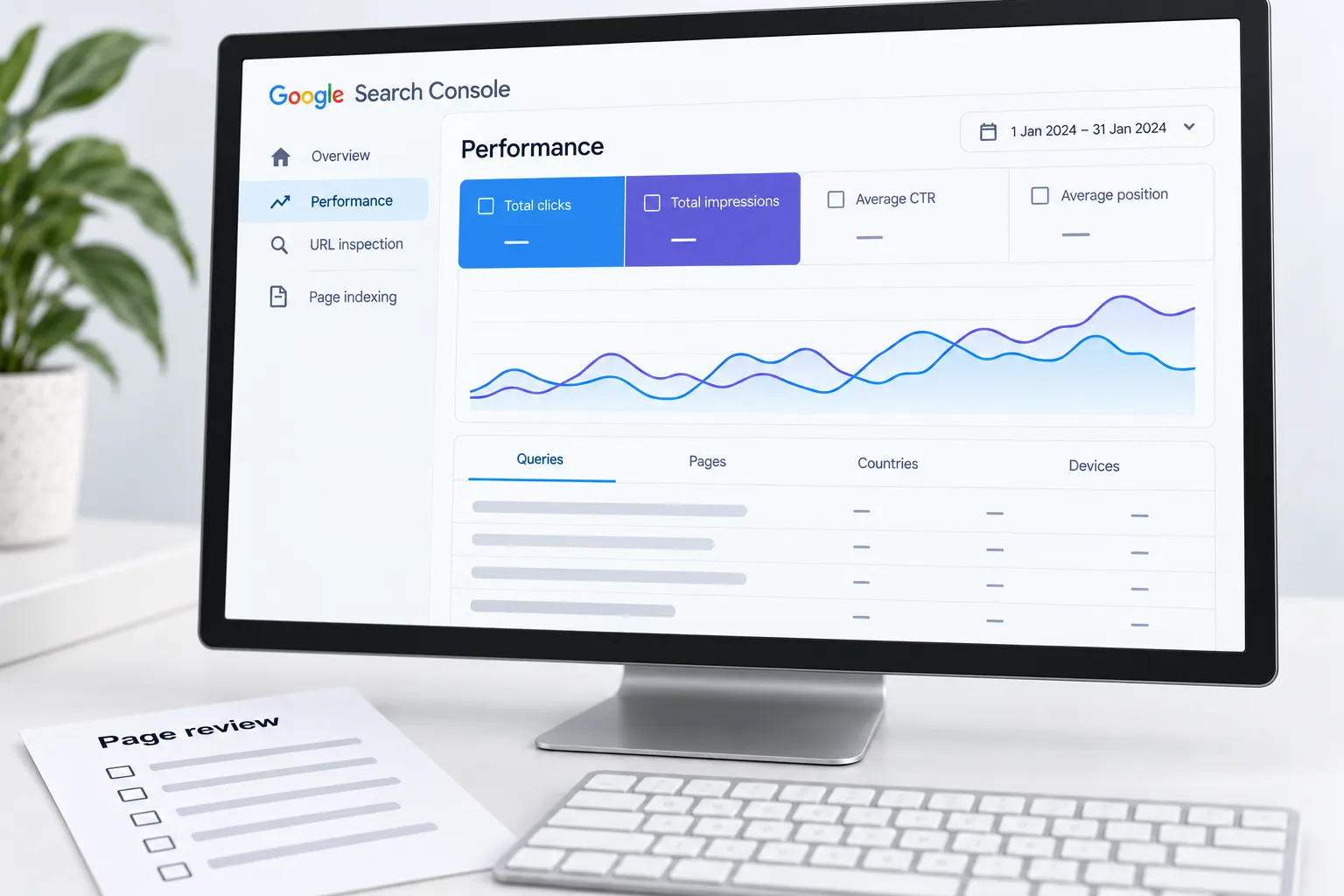
In Performance, select Web search and filter to the page or page group you are investigating. Compare complete periods with similar weekday coverage. Use a year-over-year comparison too when the business is seasonal. Note promotions, site changes and incomplete recent data.
Review clicks, impressions, click-through rate and average position together. Google’s metric definitions explain that these describe search-result appearances and interactions. They are not unique customer counts. A site-wide average can change because the mix of queries changed.
Follow one page through the report
Have the exact public URL ready. This walkthrough investigates a single service page; a category-wide analysis needs a different filter.
- Open the correct property, then Performance → Search results. Record the search type shown. Keep that type unchanged throughout the comparison.
- Open the date selector and choose Compare. Set two complete periods with matching lengths. Record their actual start and end dates; do not include an unfinished current day simply to get a round number.
- Turn on clicks, impressions and average CTR. Open the Pages table. Find the exact page and click its row to filter the report to that URL. Check the filter at the top before continuing. Use + Add filter → Pages if the page is difficult to locate; choose the appropriate exact-URL match rather than a substring that includes several pages.
- Open Queries. Compare the clicks for each period and sort the difference column to identify losses. Check impressions alongside them. Click a relevant query row to narrow the report further, then inspect its date pattern.
- Remove the query filter before switching to Devices and Countries. Otherwise you are comparing that one query, not the whole page. Keep the page and date filters in place. Note which segment explains the change; a country is not a city-level rank measurement.
- Export the table you are investigating with the report's export control. Save the property, filters and dates beside the file. After downloading, check that the headers identify both periods and that the chosen dimension is the one you intended.
Google's report setup instructions and filtering guide document these controls. Table rows, chart totals and query-filtered totals can differ because of aggregation and withheld queries. Do not force them to balance by inventing rows.
Worked example: fewer clicks, more appearances
The following figures are illustrative, not ZINC or client results.
| Period | Impressions | Clicks | Click-through rate |
|---|---|---|---|
| Previous complete four weeks | 10,000 | 400 | 4% |
| Latest complete four weeks | 12,000 | 360 | 3% |
Clicks fell 10% while impressions rose 20%. That does not prove the page title failed. Check which queries gained appearances, which lost clicks and whether device or country mix changed. A new set of broad questions can lower overall click-through rate without changing the response to your most valuable service query.
For an illustrative drill-down, suppose one visible service query went from 1,000 impressions and 100 clicks to 1,000 impressions and 70 clicks. That query accounts for 30 fewer clicks. It gives you a specific page/query combination to investigate; it does not explain the remaining ten-click decline or the extra 2,000 impressions. Check the page's query mix and the device breakdown before attributing either change to a redesign or an algorithm update.
| What the drill-down shows | Useful next check | Avoid concluding |
|---|---|---|
| One device loses clicks while others hold | Open the page and enquiry form on that device; inspect the query mix | Every decline on mobile proves a mobile bug |
| Impressions fall for the same query and page | Check dates, indexing, demand and result changes | A title rewrite will restore demand |
| New broad queries gain impressions but few clicks | Decide whether the page actually answers those questions | Lower overall CTR proves the page is worse |
| Search clicks hold but valid enquiries fall | Check form delivery and lead records separately | Search Console measures lead quality |
Inspect relevant search results and the page itself. Record alternative explanations before editing anything. Then check actual inquiries: a small traffic decline and a decline in qualified demand are different business problems.
Investigate indexing separately
Use URL Inspection when the question is whether Google has indexed the intended page. Compare the indexed information with the live test. Inspect the selected canonical and the page’s response, robots instructions, internal links and sitemap entry.
A successful live test is not a promise of indexing or a prediction of Google’s chosen canonical. Use the canonical debugging guide when those signals disagree.
Not every excluded URL needs repair. Redirected URLs, intentional duplicates and private utility pages can have legitimate reasons to remain outside the index.
Respect reporting limits
The Performance report documentation explains filtering and data limits. Some queries are withheld for privacy, and displayed rows need not reconcile to every total. Do not manufacture the missing queries or call a filtered export the complete market.
Google’s 2026 generative-AI reporting announcement describes dedicated visibility views alongside overall reporting. Inspect the available report and its metric definitions rather than labelling all organic traffic as AI traffic. An AI impression does not establish a click, inquiry or sale.
Leave with one documented action
Record the question, filters, comparison dates, observation, evidence, proposed change, owner and review date. For the example above, the next action might be to examine newly appearing broad queries before rewriting the service page.
After a repair, verify the actual page and allow for processing and recrawling before drawing conclusions. Keep an annotation for the change. If several changes happen together, acknowledge that the result cannot isolate the effect of one edit.
Use our query and page review for the recurring routine. Business intelligence connects these search observations with inquiry quality and operational records. The chart starts the investigation; it does not finish it.
Keep a review record
Download the fillable search review workbook. It includes a worked comparison, space for your sources and decisions, and 12 acceptance checks. Keep unresolved questions with an owner and review date.
Sources
- getting-started guidedevelopers.google.com
- metric definitionssupport.google.com
- report setup instructionssupport.google.com
- filtering guidesupport.google.com
- 2026 generative-AI reporting announcementdevelopers.google.com