
Connect the correct store and product source, then compare processed Merchant Center items with their actual variant pages. Validate identifiers, price, availability, shipping and returns before promotion. Successful synchronization does not mean every item is eligible.
A connected account is not a verified product feed. Before promoting the catalog, check that Google receives the same product, price and availability a customer sees.
You need authorized Shopify and Merchant Center access, a verified store domain, current shipping and return policies, and an agreed connector. Keep existing product IDs and integration settings recorded before changing anything.
Choose one accountable feed route
Establish which integration sends the products and who maintains it. A native channel may be sufficient; additional feed software needs a specific reason, such as a catalog requirement the current integration cannot meet. Avoid overlapping sources that overwrite the same fields unpredictably.
Use Shopify's Google & YouTube channel requirements and Google's product data specification for the current requirements. Country, product and destination can change what is required.
Check the business and website connection
Confirm that the correct Merchant Center account owns the website connection. Check the business identity, domain, target countries and available destinations. Stop if a different account already claims the store; resolve ownership rather than creating another account to work around it.
Open the storefront as a customer. Contact information, checkout, delivery costs and returns must be usable and accurate. Do not copy a generic policy that the business cannot fulfil.
Connect the supported Shopify channel
For a Shopify store using Google's own channel, have the store owner and the Google account with Merchant Center administrator access available. Review the channel requirements: a public store, payment provider, visible contact details and policies, and supported selling country/currency. Resolve an existing domain claim before connecting a different account. Syncing an existing feed can replace it, so record the current source and agree on the change first.
In Shopify, install Google & YouTube if it is not already present, then open it under Sales channels. Select Connect Google Account, choose the authorised account and review the requested access. Select the intended Merchant Center ID from the available accounts rather than creating a duplicate. Complete the displayed ownership verification. Review countries/languages, shipping configuration and product-title preferences before allowing the intended products to sync. Shopify's connection instructions cover that sequence.
Do not transfer a domain claim just to clear an error. If the expected account is missing, check the signed-in identity and administrator permissions with the account owner. After connection, record the Shopify store, Merchant Center ID, supplying integration and responsible person. Then inspect the processed sample below; connected does not mean approved.
Compare representative products field by field
Choose a simple product, a variant product, a sale item and an unavailable item. Record their IDs and compare each across Shopify, the submitted product data and the landing page.
| Field | What to verify |
|---|---|
| ID | Stable identifier for the same item across updates |
| Title and description | Accurate product facts, without unrelated promotional text |
| Link | Opens the correct product and selected variant |
| Image | Shows the submitted item and variant clearly |
| Price and currency | Agree with the landing page and checkout |
| Availability | Reflect the actual purchasable variant |
| Brand and identifiers | Use legitimate assigned values; never manufacture a GTIN |
| Variant attributes | Size, colour and grouping describe the actual variants |
| Delivery and returns | Configuration agrees with the public policy and destination |
The full specification contains exceptions and additional requirements. Use the table as a comparison sheet, not a replacement for that documentation.
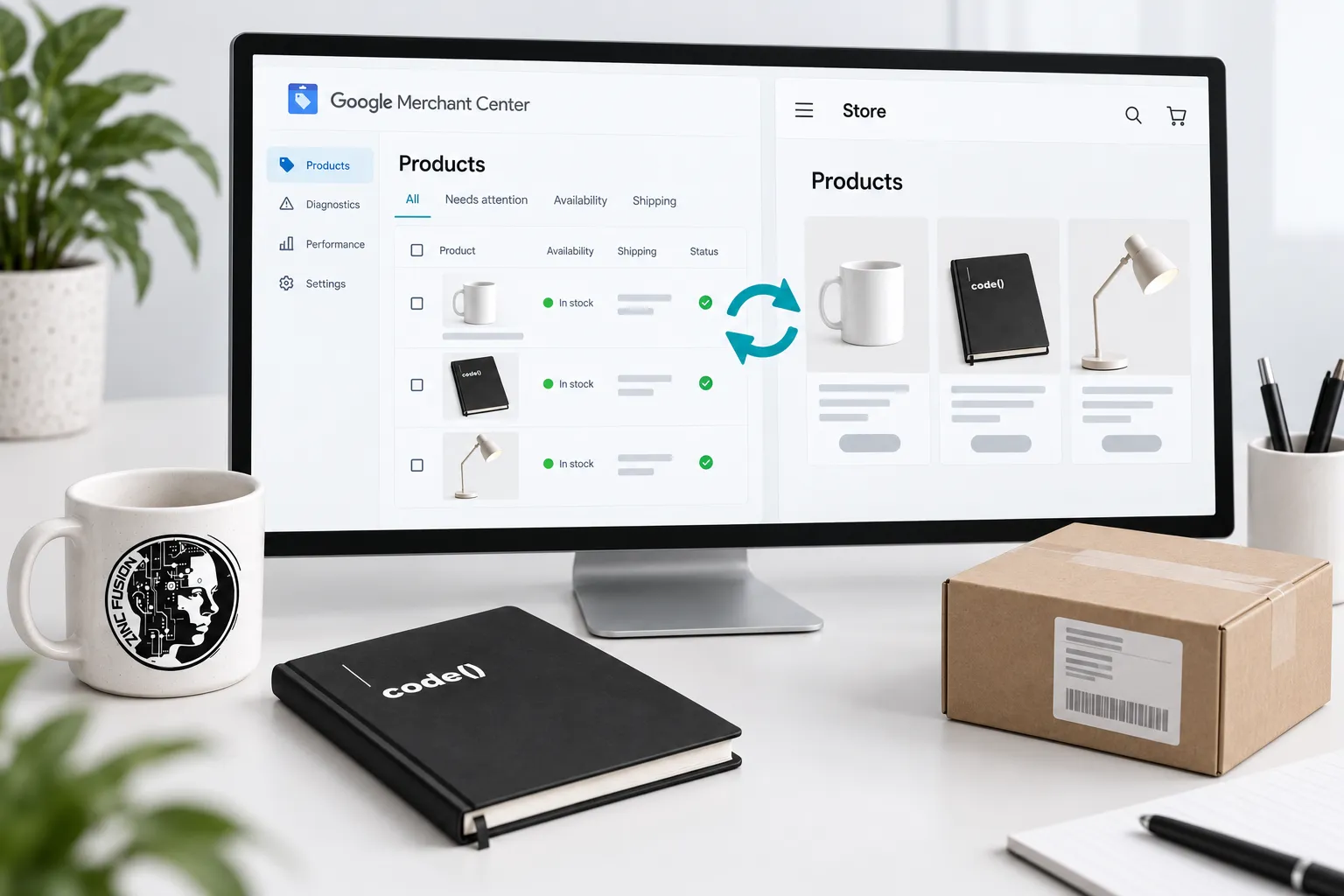
Worked mismatch investigation
Suppose an illustrative lamp is submitted at $80 but its landing page shows $95. Do not immediately resubmit the feed repeatedly. Check the product's current base price, sale dates, currency, selected variant and the integration's latest successful update.
If the store price is correct and the feed is stale, repair or refresh the responsible integration. If the submitted link selects a different variant, fix the destination. Record the actual cause and recheck the item after processing. The existence of an error does not tell you which system is wrong.
Review structured data separately
Google documents supported product-page structured data. Check that visible facts and structured values agree. A passing markup test does not prove shipping is configured correctly or every product is approved.
Check the affected item's issue details in Merchant Center. Distinguish account-level problems from item-level ones and resolve the stated requirement before requesting another review when that option applies. Keep dates and screenshots so a later failure can be compared with the original.
Validate a catalog change before scaling it
After an import, connector change or theme release, repeat the representative sample. Confirm IDs have not changed unintentionally and that priority products still open correctly. Do not assume replacing a connector preserves every setting or historical relationship.
Use the feed diagnostics walkthrough for ongoing problems. Once the product information is dependable, the Shopping campaign guide covers spend decisions. Keep setup and campaign performance as separate acceptance checks.
Compare the same item across all three places
Use one row per product ID, variant and field. Compare Shopify, the submitted record and the landing page at the same observation time. Record the cause and processed readback after a repair; a connected account alone cannot close the row.
Download the Merchant Center product comparison sheet. Open the CSV in your spreadsheet application, keep the specimen labelled, and add your own rows. Pending observations are work to complete, not failed or successful results.
Use the completed comparison to brief Shopify development on a connector or storefront defect. Move to Shopping Ads management when the unresolved task is the campaign itself, with feed eligibility checked separately.
Sources
- Google & YouTube channel requirementshelp.shopify.com
- product data specificationsupport.google.com
- connection instructionshelp.shopify.com
- supported product-page structured datasupport.google.com