
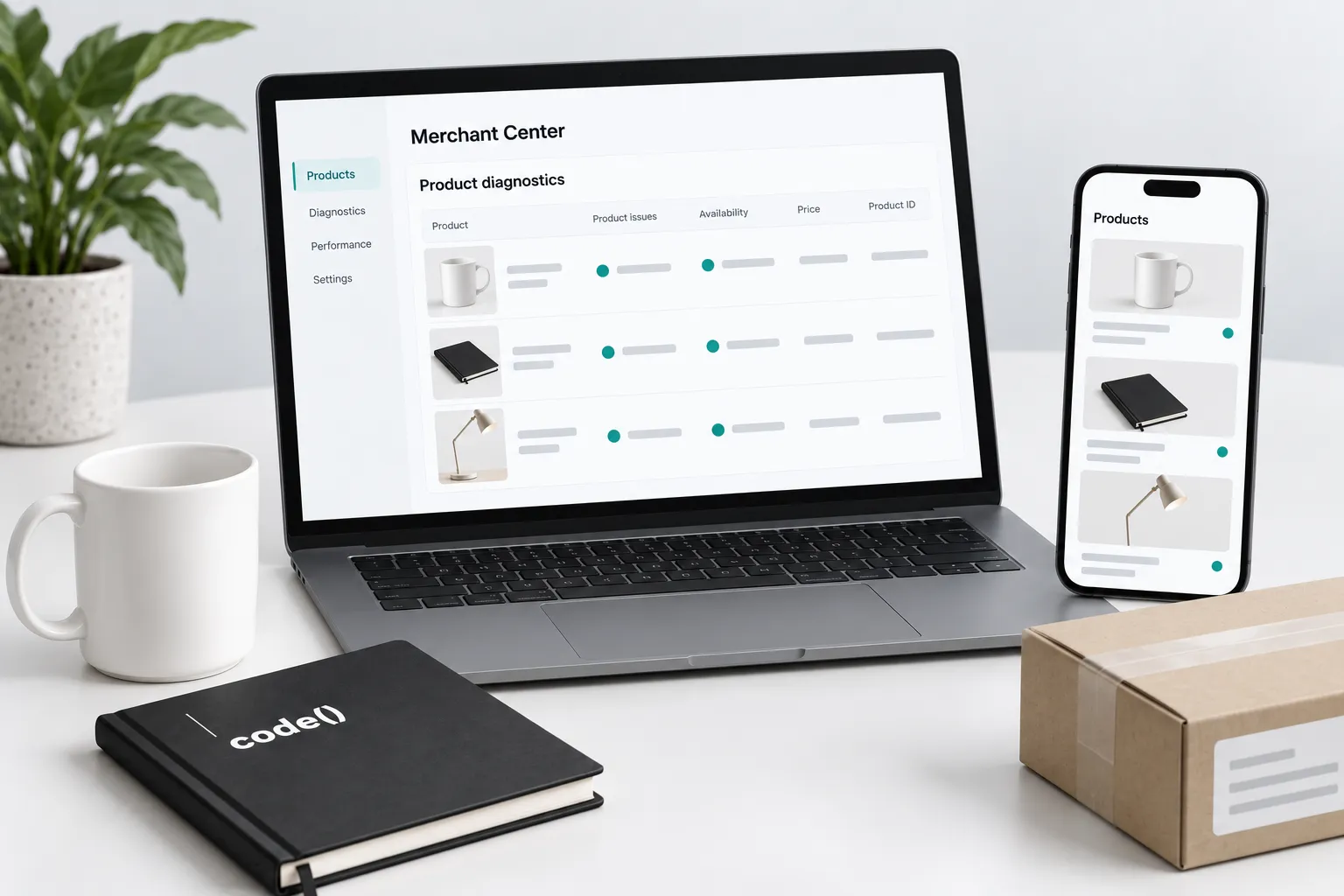
A Merchant Center issue needs a product-level explanation. Changing a campaign budget cannot repair a price or an unavailable variant.
1. Record the reported issue
Capture the item ID, exact issue, destination, market and observation time. Group affected products by shared field or template before editing.
Use Google's product data specification to identify the relevant requirements. Missing attributes, landing-page mismatches and policy issues need different investigations.
2. Trace the item across systems
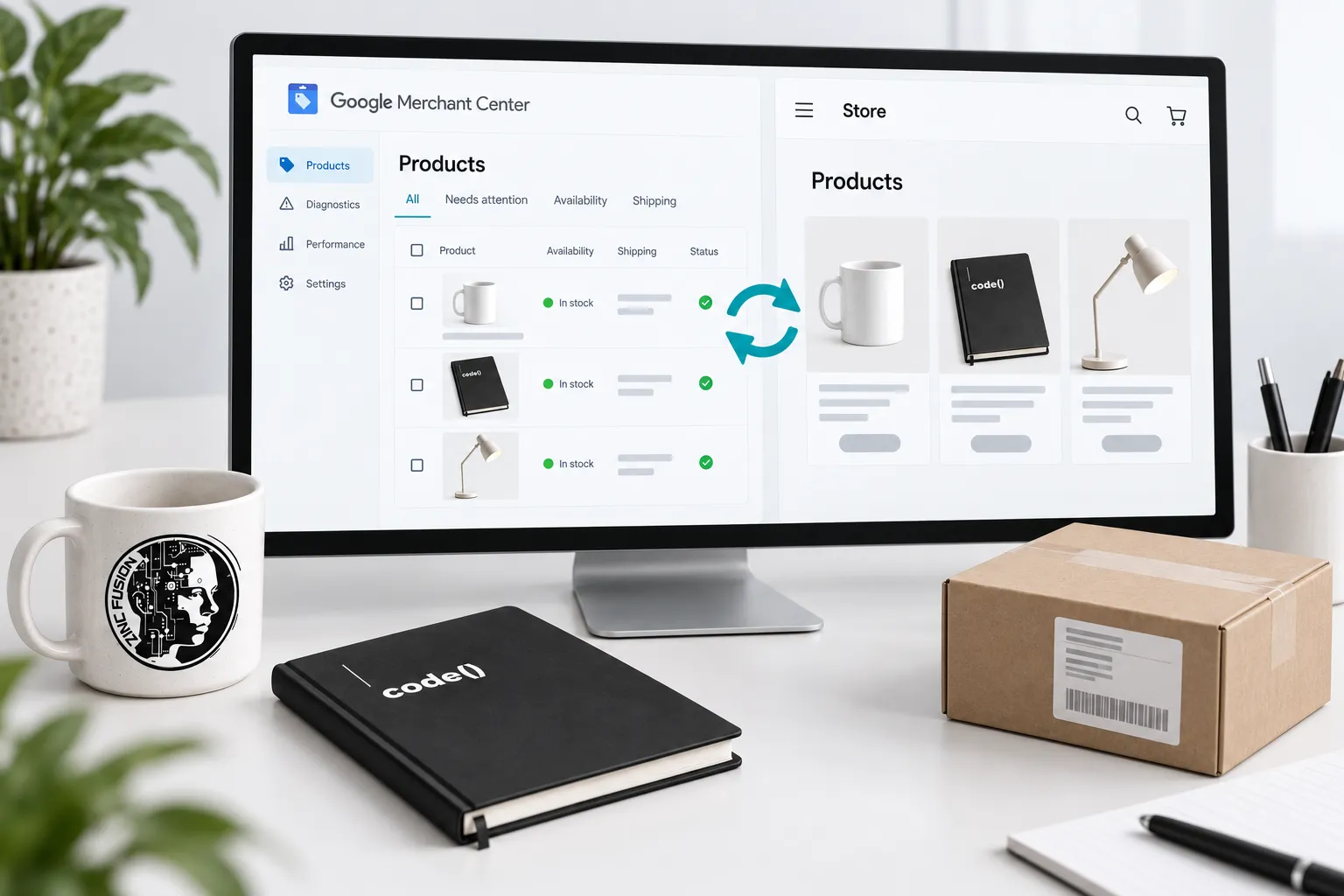
Compare the catalog record, submitted data, processed Merchant Center item and customer-facing page. Keep the market, currency and variant consistent. Open the actual submitted landing URL and continue through variant selection.
Record each field's source value, submitted value and page value. This shows whether the correction belongs in the catalog, integration mapping or storefront. Repair a shared source when several items have the same defect.
3. Check price and update timing
Google's price mismatch guidance covers agreement between submitted prices, landing pages and structured data. Compare the issue time with the price change and last successful feed update.
Inspect sale prices, dates and currency, including initial page data. Today's correct visible price does not establish what the crawler saw earlier. Check the selected variant rather than a product family's lowest displayed price.
4. Verify stock and variant identity
Test whether the affected option can actually be ordered. Google's availability documentation distinguishes in-stock, out-of-stock, preorder and backorder states; preorder requires an availability date.
Compare sibling variants: individual IDs, option details, images and landing selections must describe the right item. Use genuine manufacturer identifiers where applicable. Do not invent identifiers or confuse a published page with available inventory.
5. Repair the source and recheck status
Assign the correction to the system that supplies the incorrect field. Google's automatic update guidance states that these updates do not replace regular accurate product submissions.
After the next update, inspect the processed item and issue status. Keep submitted, verified on the page and approved as separate states. Follow the issue's specified review process where applicable.
Diagnostic record: item; issue; market; variant; source/page disagreement; correction owner; update time; current status.
Use the Merchant Center checklist and Shopify SEO pillar for the wider setup. Shopping ads decisions follow product eligibility; Shopify work fixes the storefront when the disagreement begins there.
Sources
- product data specificationsupport.google.com
- price mismatch guidancesupport.google.com
- availability documentationsupport.google.com
- automatic update guidancesupport.google.com